

ISPConfig on Ubuntu 18.04
Ubuntu 18.04 with Apache, BIND, Dovecot, PureFTPD and ISPConfig
This tutorial shows how to prepare an Ubuntu 18.04 server (with Apache2, BIND, Dovecot) for the installation of ISPConfig, and how to install ISPConfig. The web hosting control panel ISPConfig allows you to configure the following services through a web browser: Apache or nginx web server, Postfix mail server, Courier or Dovecot IMAP/POP3 server, MySQL, BIND or MyDNS nameserver, PureFTPd, SpamAssassin, ClamAV, and many more. This setup covers Apache (instead of nginx), BIND, and Dovecot. I have changed a fair bit of the original tutorial, even the one they have up there now for 18.04 isn’t complete, which is where this one came from … I thought if I was going to have to correct a lot of their instructions, I may as well publish them here on my own tools for when I need them again. The fact it helps the rest of you that view it, double bonus. (I also like to have everything available on one page when I am working through stuff, so I have also removed the annoying pagination.)
1 Preliminary Note
In this tutorial, we will use the hostname server1.example.com with the IP address 192.168.1.100 and the gateway 192.168.1.1. These settings will likely differ for you, so you should take care to ensure you replace them where appropriate.
Before proceeding further, you need to have a base server installation of Ubunto 18.04. This might be via your Hosting provider or directly using, https://www.ubuntu.com/download/server.
This tutorial functions from a beginning to end method, meaning, if this document was a to-do list, page one would be list item one, moving towards the end of the document moves down the to-do list.
2 Secondary Note
When doing the initial OS install be sure to include the OpenSSH server, it asks you during the installation to check the box.
3 Tertiary Note
By default, Ubuntu will install VIM as the default text editor, so for the purposes of this tutorial we will use that as our default editor.
Configure the Hostname
The hostname of your server should be a FQDN (Fully Qualified Domain Name) such as “server1.example.com”. Do not use a domain name without subdomain part like “example.com” as hostname as this will cause problems.
First, you should check the hostname in /etc/hosts and change it when necessary. The line should be: “IP Address – space – full hostname incl. domain – space – subdomain part”. For our hostname server1.example.com, the file shall look like this:
vim /etc/hosts
127.0.0.1       localhost.localdomain   localhost
192.168.1.100   server1.example.com     server1

# The following lines are desirable for IPv6 capable host
::1     localhost ip6-localhost ip6-loopback
ff02::1 ip6-allnodes
ff02::2 ip6-allrouters
Then edit the /etc/hostname file:
vim /etc/hostname
It shall contain only the subdomain part, in our case:
server1
Finally, reboot the server to apply the change:
reboot
Log in again and check if the hostname is correct now with these commands and the output should look like this
root@server1:/# hostname
server1
root@server1:/# hostname -f
server1.example.com
Update your base OS
First, make sure that your /etc/apt/sources.list contains the stretch/updates repository (this makes sure you always get the newest security updates), and that the universe and multiverse are enabled as some required packages are not in the main repository.
root@server1:/# vim
/etc/apt/sources.list
# APT Sources
deb http://archive.ubuntu.com/ubuntu bionic main restricted
deb-src http://archive.ubuntu.com/ubuntu bionic main restricted
deb http://archive.ubuntu.com/ubuntu bionic-updates main restricted
deb http://archive.ubuntu.com/ubuntu bionic universe
deb http://archive.ubuntu.com/ubuntu bionic-updates universe
deb http://archive.ubuntu.com/ubuntu bionic multiverse
deb http://archive.ubuntu.com/ubuntu bionic-updates multiverse
deb http://archive.ubuntu.com/ubuntu bionic-backports main restricted universe multiverse
deb http://archive.ubuntu.com/ubuntu bionic-security main restricted
deb http://archive.ubuntu.com/ubuntu bionic-security universe
deb http://archive.ubuntu.com/ubuntu bionic-security multiverse
Now run an update to update the available packages
server1:/# apt-get update
Finally upgrade everything from the apt package database
server1:/# apt-get upgrade
Synchronise the System Clock with the Internet
It is a good idea to synchronize the system clock with an NTP (network time protocol) server over the Internet. Simply run
apt-get install ntp
and your system time will always be in sync.
Install Postfix, Dovecot, MySQL, rkHunter and BinUtils
Install Postfix, Dovecot, MySQL, rkhunter, and Binutils
server1:/# apt-get install postfix postfix-mysql postfix-doc mysql-client mysql-server openssl getmail4 rkhunter binutils dovecot-imapd dovecot-pop3d dovecot-mysql dovecot-sieve dovecot-lmtpd
We prefer MySQL over MariaDB, if you would like to replace MySQL then you should use the packages “mariadb-client mariadb-server” in the above command.
You will be asked the following questions:
General type of mail
configuration: Internet Site

System mail name: server1.example.com
To secure the MariaDB / MySQL installation and to disable the test database, run this command
server1:/# mysql_secure_installation
Answer the questions as follows:
Change the root password? [Y/n] Y
 New password: Use a strong password
Re-enter new password: Repeat the strong password
 Remove anonymous users? [Y/n] Y
 Disallow root login remotely? [Y/n] Y
 Remove test database and access to it? [Y/n] Y
 Reload privilege tables now? [Y/n] Y
Next, open the TLS/SSL and submission ports in Postfix by uncommenting the submission and smtps sections as follows and add lines where necessary so that this section of the master.cf file looks exactly like the one below.
server1:/# vim /etc/postfix/master.cf
submission inet n       -       y       -       -       smtpd
  -o syslog_name=postfix/submission
  -o smtpd_tls_security_level=encrypt
  -o smtpd_sasl_auth_enable=yes
  -o smtpd_client_restrictions=permit_sasl_authenticated,reject
smtps     inet  n       -       y       -       -       smtpd
  -o syslog_name=postfix/smtps
  -o smtpd_tls_wrappermode=yes
  -o smtpd_sasl_auth_enable=yes
  -o smtpd_client_restrictions=permit_sasl_authenticated,reject
Restart Postfix
server1:/# service postfix restart
We want MySQL to listen on all interfaces, not just localhost. Therefore, we edit mysqld configuration. We must comment out the bind-address and add the statement sql-mode = “NO_ENGINE_SUBSTITUTION”
server1:/# vim /etc/mysql/mysql.conf.d/mysqld.cnf
#bind-address = 127.0.0.1
sql-mode=”NO_ENGINE_SUBSTITUTION”
If you are using MariaDB set the password authentication method in MariaDB to native so we can use PHPMyAdmin later to connect as root user
server1:/# echo "update
mysql.user set plugin = 'mysql_native_password' where user='root';" |
mysql -u root
Edit the file /etc/mysql/debian.cnf and set the MYSQL / MariaDB root password there twice in the rows that start with password. The MySQL root password that needs to be added is shown in read, in this example the password is “STRONGPASS”.
server1:/# vim /etc/mysql/debian.cnf
# Automatically generated for Debian
scripts. DO NOT TOUCH!
[client]
 host = localhost
 user = root
 password = STRONGPASS
 socket = /var/run/mysqld/mysqld.sock

[mysql_upgrade]
 host = localhost
 user = root
 password = STRONGPASS
 socket = /var/run/mysqld/mysqld.sock
 basedir = /usr
If using MariaDB, to prevent the error ‘Error in accept: Too many open files‘ we will set higher open file limits by editing the file /etc/security/limits.conf.
server1:/# vim /etc/security/limits.conf
mysql soft nofile 65535

mysql hard nofile 65535
Next, create a new directory /etc/systemd/system/mysql.service.d/
mkdir -p /etc/systemd/system/mysql.service.d/
and add a new file, limits.conf
server1:/# vim /etc/systemd/system/mysql.service.d/limits.conf
[Service]

LimitNOFILE=infinity
Reload systemd and restart MySQL
server1:/# systemctl daemon-reload
server1:/# service mysql restart
Now check that networking is enabled
server1:/# netstat -tap | grep mysql
The output should look like this
tcp6 0 0 [::]:mysql [::]:* LISTEN
17776/mysqld
Install Amavis, SpamAssassin and ClamAQ
To install Amavisd, SpamAssassin and ClamAV, we need to run
apt-get install amavisd-new
spamassassin clamav clamav-daemon unzip bzip2 arj nomarch lzop cabextract
apt-listchanges libnet-ldap-perl libauthen-sasl-perl clamav-docs daemon
libio-string-perl libio-socket-ssl-perl libnet-ident-perl zip libnet-dns-perl libdbd-mysql-perl
postgrey
The ISPConfig 3 setup uses amavisd which loads the SpamAssassin filter library internally, so we can stop SpamAssassin running standalone
service spamassassin stop
systemctl disable spamassassin
Install Metronome XMPP Server (Optional)
This step installs the Metronome XMPP Server which provides a chat server that is compatible with the XMPP protocol. This step is optional, if you do not need a chat server, then you can skip this step. No other ISPConfig functions depend on this software.
Install the require pre-requisite packages with apt.
server1:/# apt-get install git lua5.1
liblua5.1-0-dev lua-filesystem libidn11-dev libssl-dev lua-zlib lua-expat
lua-event lua-bitop lua-socket lua-sec luarocks luarocks
server1:/# luarocks install lpc
Add a shell user for Metronome.
server1:/# adduser
--no-create-home --disabled-login --gecos 'Metronome' metronome
Download Metronome to the /opt directory and compile it.
Server1:/# cd /opt; git clone https://github.com/maranda/metronome.git metronome
Server1:/# cd ./metronome; ./configure --ostype=debian --prefix=/usr
Server1:/# make
Server1:/# make install
Metronome has now been installed to /opt/metronome.
Install Apache2, PHP, FCGI, suExec, Pear, phpMyAdmin and mCrypt
First, because mcrypt is no longer available directly with the Ubuntu distribution, we must install mCrypt and php before continuing.
# apt-get install php php-dev
libmcrypt-dev php-pear
Now the system is ready to install the php-mcrypt module
# pecl channel-update pecl.php.net
# pecl install mcrypt-1.0.1
Next we need to tell PHP that there is a new module available by creating a module for php and making it available.
# vim
/etc/php/x.x/mods-available/mcrypt.ini
The x.x refers to the version of PHP you have installed, it is usually 7.2 with a fresh install of Ubuntu 18.04.
Add the following to the mcrypt.ini file and save.
Extension=mcrypt.so
Now we can continue to install the rest of the web elements, Apache2, phpMyAdmin, FCGI and suExec.
apt-get -y install apache2
apache2-doc apache2-utils libapache2-mod-php php-common php-gd php-mysql
php-imap phpmyadmin php-cli php-cgi libapache2-mod-fcgid apache2-suexec pristine php-pear imagemagick
libruby libapache2-mod-python php-curl php-intl php-pspell php-recode
php-sqlite3 php-tidy php-xmlrpc php-xsl
memcached php-memcache php-imagick php-gettext php-zip php-mbstring memcached libapache2-mod-passenger php-soap
You will see the following questions:
Web server to reconfigure automatically: APACHE2
 Configure database for phpmyadmin with dbconfig-common? YES
Enter the phpmyadmin application password? PRESS ENTER
Then run the following command to enable the Apache modules suexec, rewrite, ssl, actions, and include dav, dav_fs, and auth_digest if you want to use WebDAV across the server.
a2enmod suexec rewrite ssl actions
include dav_fs dav auth_digest cgi headers
To ensure that the server cannot be attacked through the HTTPOXY vulnerability, we will disable the HTTP_PROXY header in apache globally by adding the configuration file /etc/apache2/conf-available/httpoxy.conf.
vim /etc/apache2/conf-available/httpoxy.conf
Paste the following content to the file:
<IfModule mod_headers.c>
  RequestHeader unset Proxy early
</IfModule>
Then enable the module by running:
a2enconf httpoxy
service apache2 restart
Install LetsEncrypt (Certbot)
ISPConfig 3.1 has support for the free SSL Certificate authority Let’s Encrypt. The Let’s Encrypt function allows you to create free SSL certificates for your website from within ISPConfig.
Now we will add support for Let’s encrypt.
apt-get install certbot
There are no further steps required the website SSL certificates are created by ISPConfig when you add the web sites.
Install PHP-FPM
To use PHP-FPM with Apache, we need the mod_proxy_fcgi Apache module, which is installed by default and needs just be enabled. We can install PHP-FPM and as follows
apt-get install php-fpm
Install PHP Opcode Cache
Opcache is a free PHP opcode cacher for caching and optimizing PHP intermediate code. APCu is a compatibility module which provides APC compatible functions for Opcache which is used by many CMS caching systems. It is recommended to have these PHP extensions installed to speed up your PHP page.
Install the appropriate php modules
apt-get install php-opcache
php-apcu
Now restart Apache
service apache2 restart
Install Mailman
ISPConfig does allow you to manage (create/modify/delete) Mailman mailing lists. If you want to make use of this feature then you just need to install the application.
apt-get install mailman
You need to select at least one language
Languages to support: EN
Missing site list: PRESS ENTER
Before we can start Mailman, a first mailing list called mailman must be created
Server1:/# newlist mailman
Enter the email of the person running the list: Admin email address, eg. listadmin@domain
 Initial mailman password: STRONG PASSWORD
Hit enter to notify mailman owner... PRESS ENTER
Edit /etc/aliases
vim /etc/aliases
Add the following and save
## mailman mailing list
mailman:              "|/var/lib/mailman/mail/mailman post mailman"
mailman-admin:        "|/var/lib/mailman/mail/mailman admin mailman"
mailman-bounces:      "|/var/lib/mailman/mail/mailman bounces mailman"
mailman-confirm:      "|/var/lib/mailman/mail/mailman confirm mailman"
mailman-join:         "|/var/lib/mailman/mail/mailman join mailman"
mailman-leave:        "|/var/lib/mailman/mail/mailman leave mailman"
mailman-owner:        "|/var/lib/mailman/mail/mailman owner mailman"
mailman-request:      "|/var/lib/mailman/mail/mailman request mailman"
mailman-subscribe:    "|/var/lib/mailman/mail/mailman subscribe mailman"
mailman-unsubscribe:  "|/var/lib/mailman/mail/mailman unsubscribe mailman"
Commit the new aliases to the system and restart Postfix
server1:/# newaliases
server1:/# service postfix restart
Finally, we must enable the Mailman Apache configuration
ln -s /etc/mailman/apache.conf
/etc/apache2/conf-enabled/mailman.conf
This defines the alias /cgi-bin/mailman/ for all Apache vhosts, which means you can access the Mailman admin interface for a list at http://server1.example.com/cgi-bin/mailman/admin/, and the web page for users of a mailing list can be found at http://server1.example.com/cgi-bin/mailman/listinfo/.
Under http://server1.example.com/pipermail you can find the mailing list archives.
Restart Apache and start the mailman daemon
service apache2 restart
service mailman start
Install PureFTPd and Quotas
Install PureFTPd and quota
apt-get install
pure-ftpd-common pure-ftpd-mysql quota quotatool
Create the dhparam file for pure-ftpd
openssl dhparam -out
/etc/ssl/private/pure-ftpd-dhparams.pem 2048
Edit the file /etc/default/pure-ftpd-common and ensure the following are correct
server1:/# vim
/etc/default/pure-ftpd-common
# ISPConfig Settings
STANDALONE_OR_INETD=standalone
VIRTUALCHROOT=true
Now we configure PureFTPd to allow FTP and TLS sessions. FTP is a very insecure protocol because all passwords and all data are transferred in clear text. By using TLS, the whole communication can be encrypted, thus making FTP much more secure.
If you want to allow FTP and TLS sessions (strongly suggested)
echo 1 > /etc/pure-ftpd/conf/TLS
In order to use TLS, we must create an SSL certificate.
server1:/# mkdir -p /etc/ssl/private
server1:/# openssl req -x509 -nodes -days 7300 -newkey rsa:2048 -keyout /etc/ssl/private/pure-ftpd.pem -out /etc/ssl/private/pure-ftpd.pem
PureFTPd Certificate Questions
Country Name (2 letter code) [AU]: COUNTRY CODE
Locality Name (eg, city) []: CITY
Organization Name (eg, company) [Internet Widgits Pty Ltd]: COMPANY NAME
Organizational Unit Name (eg, section) []: <-- Hit Enter
Common Name (e.g. server FQDN or YOUR name) [server1.canomi.com]: ENTER FQDN eg. server1.example.com
Email Address []: PRESS ENTER
Change the permissions of the SSL certificate and restart PureFTPd
server1:/# chmod 600 /etc/ssl/private/pure-ftpd.pem
server1:/# service pure-ftpd-mysql restart
Now we need to edit /etc/fstab to ensure quota’s are being used appropriately, this document assumes a single / partition entry. The areas in red are the edited values.
server1:/# vim /etc/fstab
UUID=35cb2cf4-4314-49a7-85d9-fd587e34e4c2 / ext4 defaults,errors=remount-ro,usrjquota=quota.user,grpjquota=quota.group,jqfmt=vfsv0 0 1
/swap.img       none    swap    sw      0       0
To enable quota, run these commands:
mount -o remount /
quotacheck -avugm
quotaon -avug
Install BIND DNS Server
BIND is installed as follows
apt-get install bind9 dnsutils
If your server is a virtual machine, then it is highly recommended to install the haveged daemon to get a higher entropy for DNSSEC signing. You can install haveged on nonvirtual servers as well, it should not hurt.
apt-get install haveged
For a more detailed explanation on haveged and DNSSEC, click here.
Install Webalizer and AWStats
Install Webalizer and AWStats
apt-get install webalizer awstats
geoip-database libclass-dbi-mysql-perl libtimedate-perl
Comment out the default cron tasks for AWStats in /etc/cron.d/awstats (edits in red)
server1:/# vim /etc/cron.d/awstats
#MAILTO=root
#*/10 * * * * www-data [ -x /usr/share/awstats/tools/update.sh ] && /usr/share/awstats/tools/update.sh
# Generate static reports:
#10 03 * * * www-data [ -x /usr/share/awstats/tools/buildstatic.sh ] && /usr/share/awstats/tools/buildstatic.sh
Install Jailkit
Jailkit is needed only if you want to chroot SSH users, to install it follow the below instructions
server1:/# apt-get install
build-essential autoconf automake libtool flex bison debhelper binutils
server1:/# cd /tmp
server1:/tmp# wget http://olivier.sessink.nl/jailkit/jailkit-2.20.tar.gz
server1:/tmp# tar xvfz jailkit-2.20.tar.gz
server1:/tmp# cd jailkit-2.20
server1:/tmp/jailkit-2.20# echo 5 > debian/compat
server1:/tmp/jailkit-2.20# ./debian/rules binary
server1:/tmp/jailkit-2.20# cd ..
server1:/tmp# dpkg -i jailkit_2.20-1_*.deb
server1:/tmp# rm -rf jailkit-2.20*
Install fail2ban
This is optional but shouldn’t be, it is highly recommended this is installed
apt-get install fail2ban
To make fail2ban monitor PureFTPd and Dovecot, create the file /etc/fail2ban/jail.local
server1:/# vim
/etc/fail2ban/jail.local
[pure-ftpd]
 enabled = true
 port = ftp
 filter = pure-ftpd
 logpath = /var/log/syslog
 maxretry = 3

[dovecot]
 enabled = true
 filter = dovecot
 logpath = /var/log/mail.log
 maxretry = 5

[postfix-sasl]
 enabled = true
 port = smtp
 filter = postfix-sasl
 logpath = /var/log/mail.log
 maxretry = 3
Restart fail2ban afterwards
service fail2ban restart
Install RoundCube Webmail Platform
Install RoundCube
apt-get install roundcube
roundcube-core roundcube-mysql roundcube-plugins
The installer will ask the following questions
Configure database for
roundcube with dbconfig.common? YES

MySQL application password for roundcube: PRESS ENTER

Password of the databases administrative user: MySQL Root
STRONG PASSWORD
Then edit the RoundCube /etc/roundcube/config.inc.php file and adjust a few settings:
vim /etc/roundcube/config.inc.php
Set the default_host and smtp_server to localhost
$config['default_host'] = 'localhost';
$config['smtp_server']  = 'localhost';
Then edit the Apache roundcube configuration file
vim /etc/apache2/conf-enabled/roundcube.conf
And add an alias line for the apache /webmail alias, you can add the line right at the beginning of the file. NOTE: Do not use /mail as alias!
Alias /webmail /var/lib/roundcube
Then reload Apache
service apache2 reload
Now you can access RoundCube as follows (it is also important to note that roundcube will only be available to domains/websites where they are suPHP enabled):
http://192.168.1.100/webmail
 http://www.example.com/webmail
 http://server1.example.com:8080/webmail

Install ISPConfig
To install ISPConfig from the latest released version
First get the download link from the ispconfig.org website, https://www.ispconfig.org/ispconfig/download/ referred to as <downloadlink> further in this document.
server1:/# cd /tmp
server1:/# wget <downloadlink>
server1:/# tar xfz <downloadfile>.tar.gz
server1:/# cd ispconfig3_install/install/
server1:/# php -q install.php
The installer will ask a number of questions, the answers to which you will already by familiar with. The installation will also configure all of the services that have just been installed.
Select language (en,de) [en]: PRESS ENTER
Installation mode (standard,expert) [standard]: PRESS ENTER
Full qualified hostname (FQDN) of the server, eg server1.domain.tld [server1.example.com]: PRESS ENTER
MySQL server hostname [localhost]: PRESS ENTER
MySQL server port [3306]: PRESS ENTER
MySQL root username [root]: PRESS ENTER
MySQL root password []: MySQL Root STRONG PASSWORD
MySQL database to create [dbispconfig]: PRESS ENTER
MySQL charset [utf8]: PRESS ENTER
Configuring Postgrey
 Configuring Postfix
 Generating a 4096 bit RSA private key
 .......................................................................++
 ........................................................................................................................................++
 writing new private key to 'smtpd.key'
 -----
 You are about to be asked to enter information that will be incorporated
 into your certificate request.
 What you are about to enter is what is called a Distinguished Name or a DN.
 There are quite a few fields but you can leave some blank
 For some fields there will be a default value,
 If you enter '.', the field will be left blank.
 -----
 Country Name (2 letter code) [AU]: COUNTRY CODE
 State or Province Name (full name) [Some-State]: STATELocality Name (eg, city) []: CITY
 Organization Name (eg, company) [Internet Widgits Pty Ltd]: COMPANY NAME
 Organizational Unit Name (eg, section) []: PRESS ENTER
 Common Name (e.g. server FQDN or YOUR name) []: ENTER FQDN eg. server1.example.com
 Email Address []: PRESS ENTER
 Configuring Mailman
 Configuring Dovecot
 Configuring Spamassassin
 Configuring Amavisd
 Configuring Getmail
 Configuring BIND
 Configuring Jailkit
 Configuring Pureftpd
 Configuring Apache
 Configuring vlogger
 Configuring Metronome XMPP Server
 writing new private key to 'localhost.key'
 -----
 Country Name (2 letter code) [AU]: COUNTRY CODE
 Locality Name (eg, city) []: CITY
 Organization Name (eg, company) [Internet Widgits Pty Ltd]: COMPANY NAME
 Organizational Unit Name (eg, section) []: <-- Hit Enter
 Common Name (e.g. server FQDN or YOUR name) [server1.canomi.com]: ENTER FQDN eg. server1.example.com
 Email Address []: PRESS ENTER
Configuring Ubuntu Firewall
Configuring Fail2ban
[INFO] service OpenVZ not detected
Configuring Apps vhost
Installing ISPConfig
ISPConfig Port [8080]:
Admin password [admin]:
Do you want a secure (SSL) connection to the ISPConfig web interface (y,n) [y]: PRESS ENTER
Generating RSA private key, 4096 bit long modulus
.......................++................................................................................................................................++
 e is 65537 (0x10001)
 You are about to be asked to enter information that will be incorporated
 into your certificate request.
 What you are about to enter is what is called a Distinguished Name or a DN.
 There are quite a few fields but you can leave some blank
 For some fields there will be a default value,
 If you enter '.', the field will be left blank.
 -----
 Country Name (2 letter code) [AU]: COUNTRY CODE
 State or Province Name (full name) [Some-State]: STATE
Locality Name (eg, city) []: CITY
 Organization Name (eg, company) [Internet Widgits Pty Ltd]: COMPANY NAME
 Organizational Unit Name (eg, section) []: PRESS ENTER
 Common Name (e.g. server FQDN or YOUR name) []: ENTER FQDN eg. server1.example.com
 Email Address []:  PRESS ENTER
Please enter the following 'extra' attributes
 to be sent with your certificate request
 A challenge password []:  PRESS ENTER
 An optional company name []:  PRESS ENTER
 writing RSA key
Configuring DBServer
Installing ISPConfig crontab
no crontab for root
no crontab for getmail
Detect IP addresses
Restarting services ...
Installation completed.
The installer automatically configures all underlying services, so no manual configuration is needed.
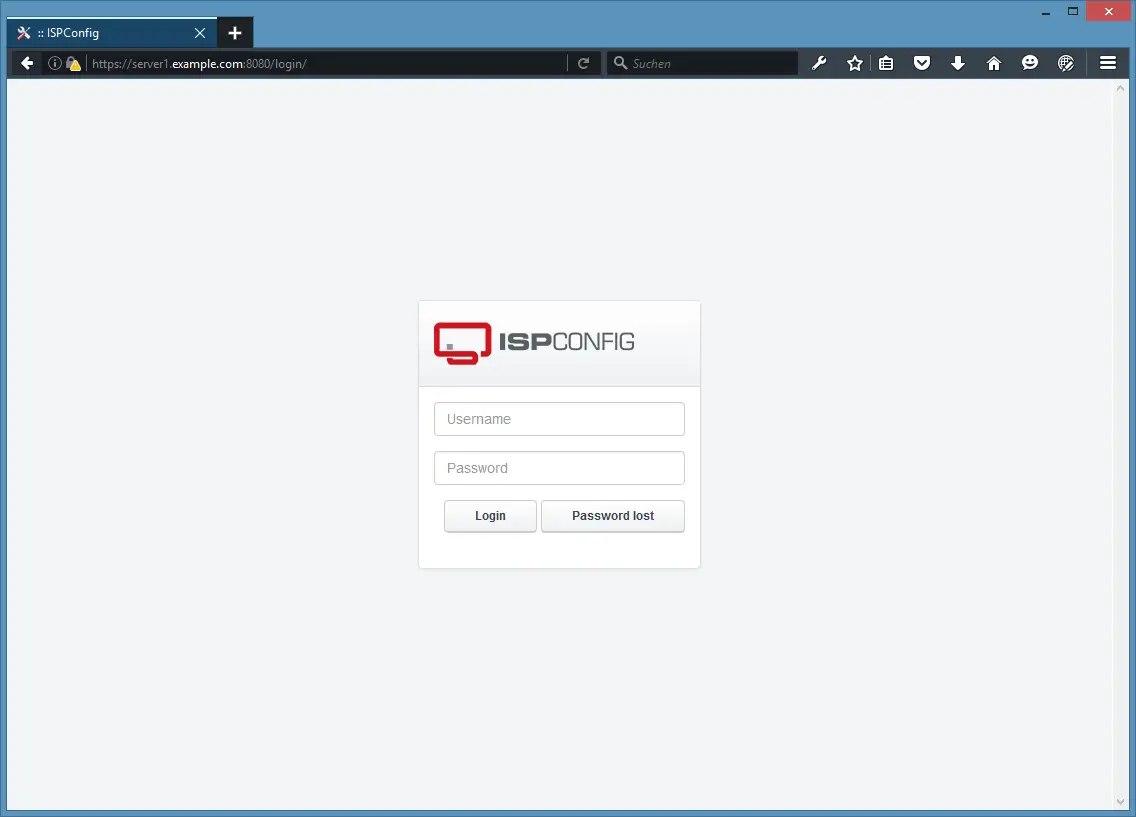
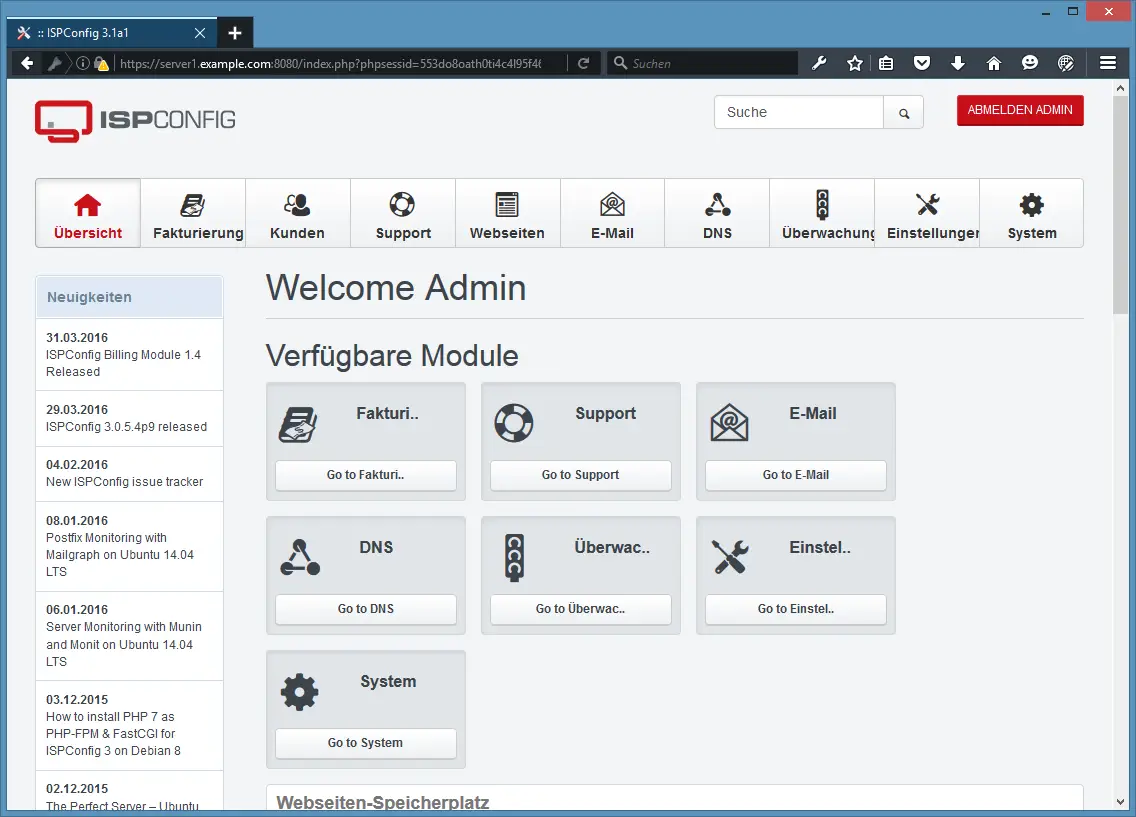
Once the installation is complete you will be able to access ISPConfig via https://server1.example.com:8080/
Log in with the username admin and the password you chose during the installation process.


https://www.howtoforge.com/tutorial/perfect-server-debian-9-stretch-apache-bind-dovecot-ispconfig-3-1
Original source:


Leave a Reply to George Cancel reply